These settings apply to XCM 2015 only. Firefox provides two options for enabling Pop-ups, choose one below.
Disable Cache
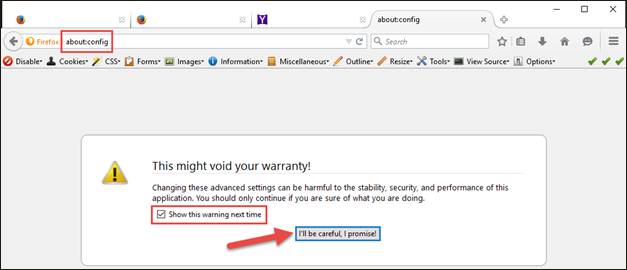
Open Firefox and in the Search or enter address field, type about:config (that is a hyphen between the two words). Ignore the warning screen and continue by clicking the I’ll be careful, I promise! button.
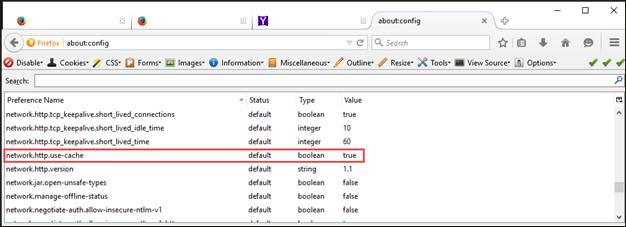
On the screen that appears, scroll down to the selection: network.http.use-cache
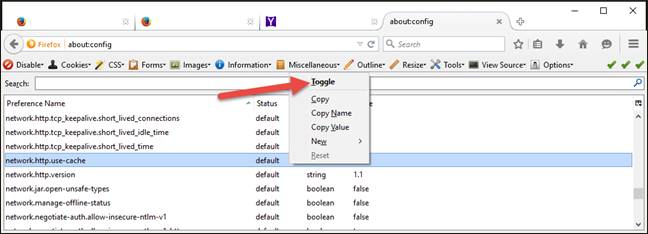
Right-click the network.http.use-cache selection and click Toggle in the menu that appears.
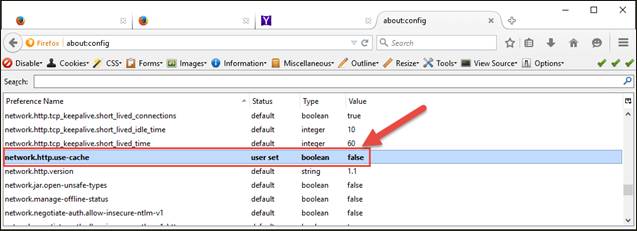
The value will change to false.
Close and reopen Firefox to apply your changes.
Enable All Pop-ups
On the upper-right corner of the main Firefox screen, click the three lines, and then click the Options icon in the screen that appears.
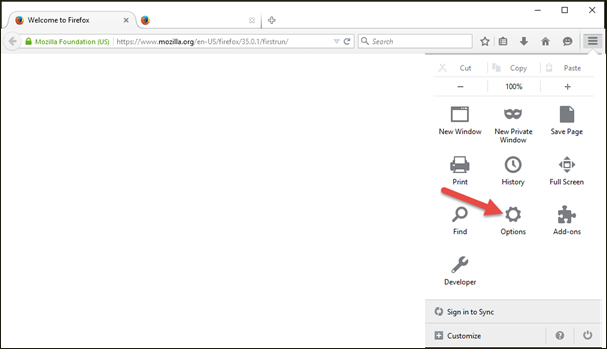
On the Options screen, and then click the Content tab. Uncheck the Block pop-up windows checkbox.
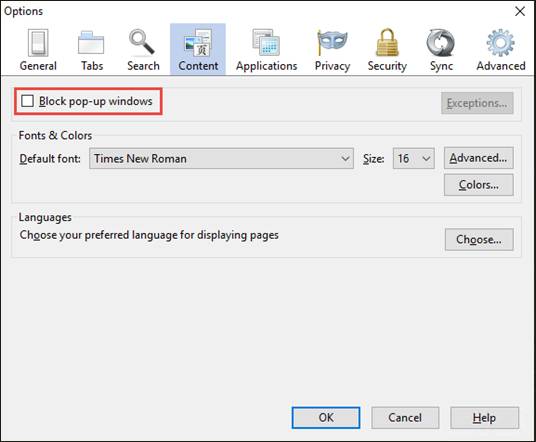
Click the OK button to save your changes.
Enable Pop-ups For Only The XCM Site
On the upper-right corner of the main Firefox screen, click the three lines, and then click the Options icon in the screen that appears.
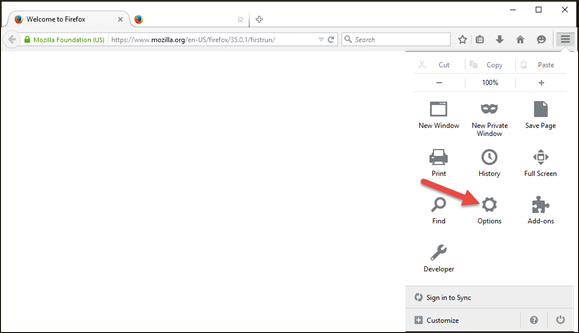
On the Options screen, click the Content tab. Check the Block pop-up windows checkbox, and then click the Exceptions button.
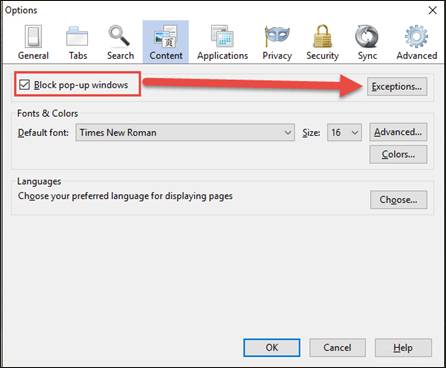
On the Allowed Sites – Pop-ups screen, type *.xcmsolutions.com in the Address of website field, and then click the Allow button.
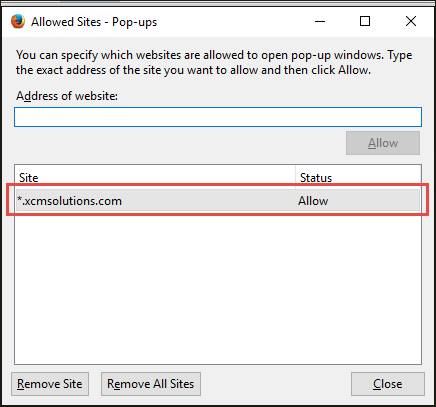
Click the Close button to save your changes.