These settings apply to XCM 2015 only. IE provides two options for enabling Pop-ups, choose one below.
Disable Cache
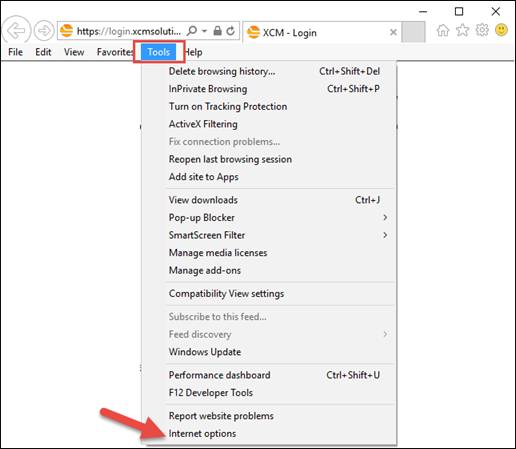
Open Internet Explorer (IE). From the main menu, click the Tools header, and then Internet Options.
On the General tab of the Internet Options page which appears, click the Settings button. On the Website Data Settings page under Check for new versions of stored pages, click the radio button next to Every time I visit the webpage.
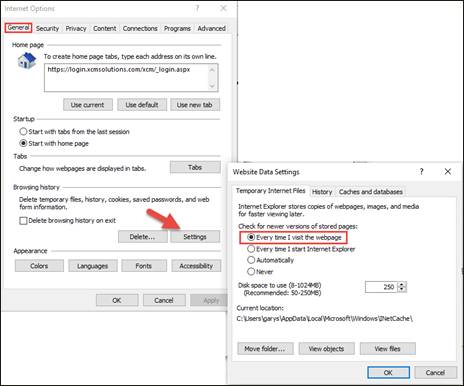
Click the OK button on each page to save your changes and return to the main IE screen.
Enable All Pop-ups
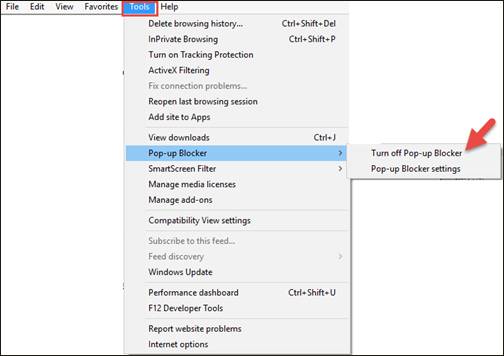
From the main menu, click the Tools header, and then highlight the Pop-up Blocker selection. On the submenu which appears, click Turn off Pop-up Blocker.
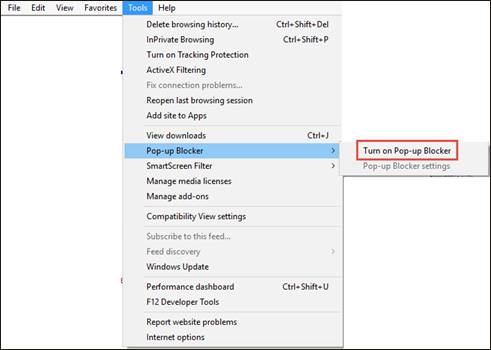
Once the Pop-up Blocker is turned off, the submenu selection changes to Turn on Pop-up Blocker, signifying that Pop-ups are not currently being blocked.
Enable Pop-ups For Only The XCM Site
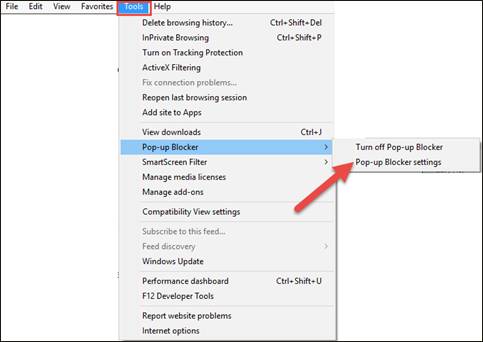
From the main IE menu, click the Tools header, and then highlight the Pop-up Blocker selection. On the submenu which appears, click Pop-up Blocker settings.
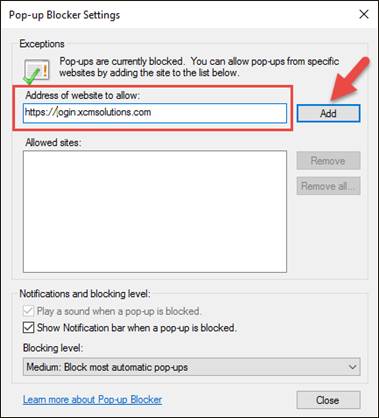
On the Pop-up Blocker Settings screen which appears, in the space under Address of website to allow, type
https://login.xcmsolutions.com, and then click the Add button.
The XCM site will now appear in the Allowed sites window.
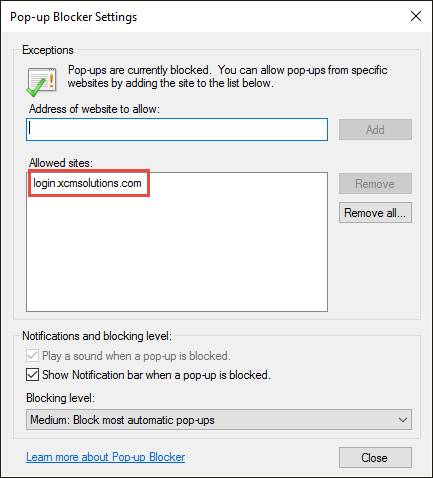
Click the Close button to save your changes and exit.