XCM’s legacy interface supports only IE Version 9 or higher (IE 11 is preferred) and you must prepare your browser so that interactions with the XCM site are fully trusted.
If your firm has an IT department, you should get them involved to apply the following configuration steps to your workstation’s browser (your settings may be applied centrally by your IT department through a global policy).
Ongoing maintenance to the firm’s network may alter IE settings, so if XCM acts abnormally, your IT department should first make sure that the needed IE configuration is still valid.
Required Settings
1. Open Internet Explorer (IE). To determine which version of IE you are using, from the menu at the top of the screen, click Help, then About Internet Explorer. Any trailing version numbers indicate applied fixes to the base version.
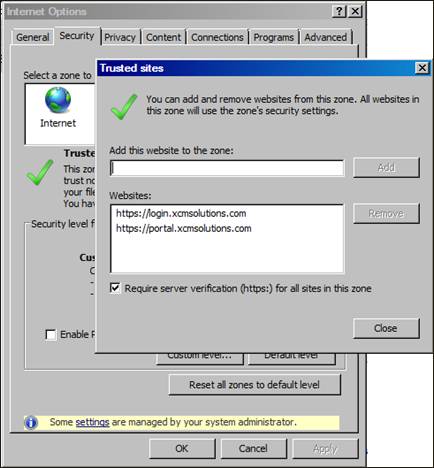
2. From the main IE window, click Tools, then Internet Options, and then the Security tab to access the IE Security Settings screen.
3. Highlight the Trusted Sites green check icon, and then click the Sites button. In the Trusted Sites screen that appears, add these website URLs to the Trusted Sites list:
https://login.xcmsolutions.com
https://portal.xcmsolutions.com
*If users first always go to www.xcmsolutions.com, and then use the Client Login link to login to XCM, you may also want to add [first, uncheck Require server verification (https) for all sites in this zone] this URL:
http://www.xcmsolutions.com
4. Follow these directions only if your firm uses XCM’s client or document integration, otherwise skip to Step 5.
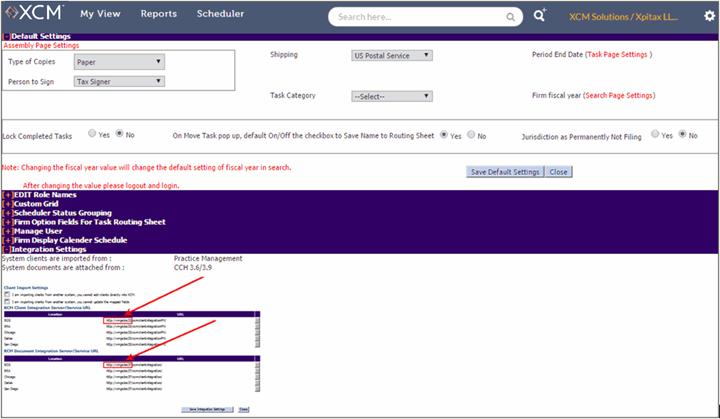
If your firm uses XCM’s client or document integration, the firm’s network has one or more URLs that are necessary to support these features. These URLs must also be added to the Trusted Sites zone.
To determine the necessary URLs to add, from the XCM Utilities tab, open Manage Settings and Defaults to see the page below (your XCM user account may not have the necessary permissions to view this page, so you may need to contact your firm’s IT department or XCM administrator). One or both of the Integration settings will be displayed depending on what features your firm has installed. Add the portion of each URL outlined in red below (your firm’s URLs will be different than what is shown) to the Trusted Sites zone [first, uncheck Require server verification (https) for all sites in this zone].
5. Click the Close button to save the Trusted Sites list.
6. From the Security tab, with the Trusted Sites green check icon highlighted in the Select a zone to view or change security settings area, click the Custom level button to bring up the following screen.
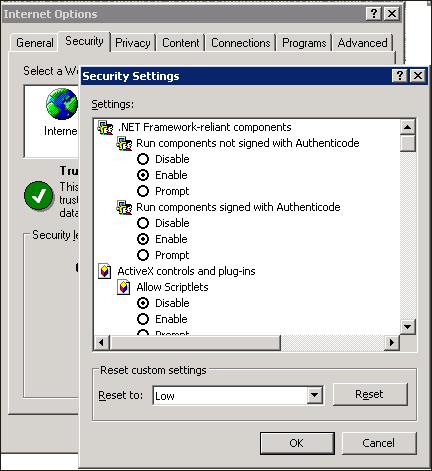
7. In the Settings window, scroll down until you see the following headings. Verify or change their settings by clicking the Enable radio button under each one.
a. Automatic prompting for ActiveX controls
b. Download signed ActiveX controls
c. Initialize and script ActiveX controls not marked as safe for scripting
d. Access data sources across domains
e. Display mixed content
8. In the same Settings window, continue to scroll down until you see the following headings. Verify or change their settings by clicking the Disable radio button under each one.
a. Use phishing filter
b. Use Pop-up Blocker
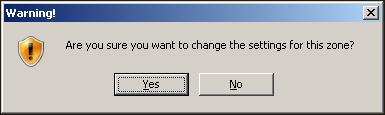
9. Click the OK button to save your settings, and if the warning screen below appears, click the Yes button to verify your changes.
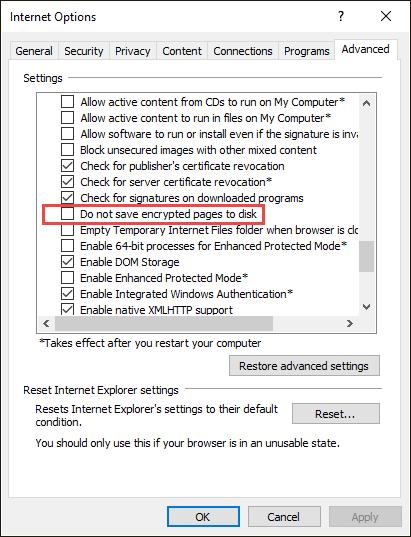
10. From the Advanced tab on the Internet Options screen, in the Settings window, scroll down until you see the following heading. Verify or change its setting by clearing the checkbox next to it (it should not be checked).
a. Do not save encrypted pages to disk
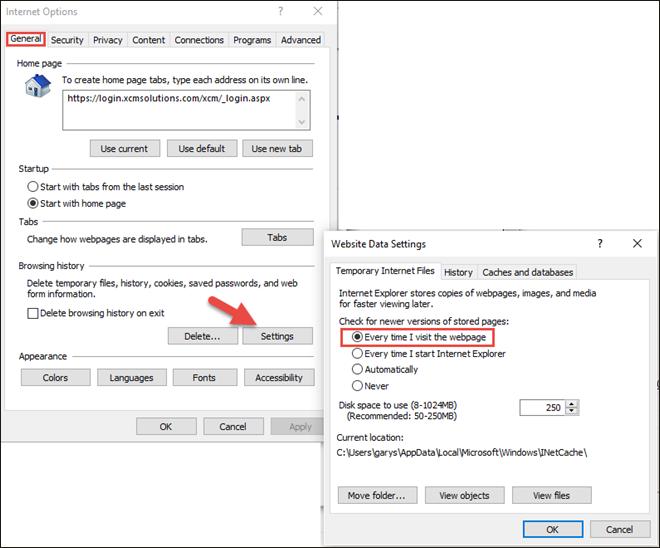
11. From the General tab, under Browsing History, click the Settings button to open the Temporary Internet Files tab. Verify or change the Check for newer versions of stored pages setting to Every time I visit the webpage by clicking the radio button next to it, as in the screenshot below. Click the OK button to return to the Internet Options window.
12. Click the OK button to close the Internet Options windows, and then exit from Internet Explorer for all settings to be applied.